Author Archives: Eli Gurvitz

Fixing my TV remote control

My TV remote control became less and less responsive. Some buttons stopped working altogether while others responded only when pressed very hard or wiggled around in their socket. This situation became truly inconvenient until I decided to buy a new remote control. However, just before going to the store I decided to open the remote control and see if I can fix it.

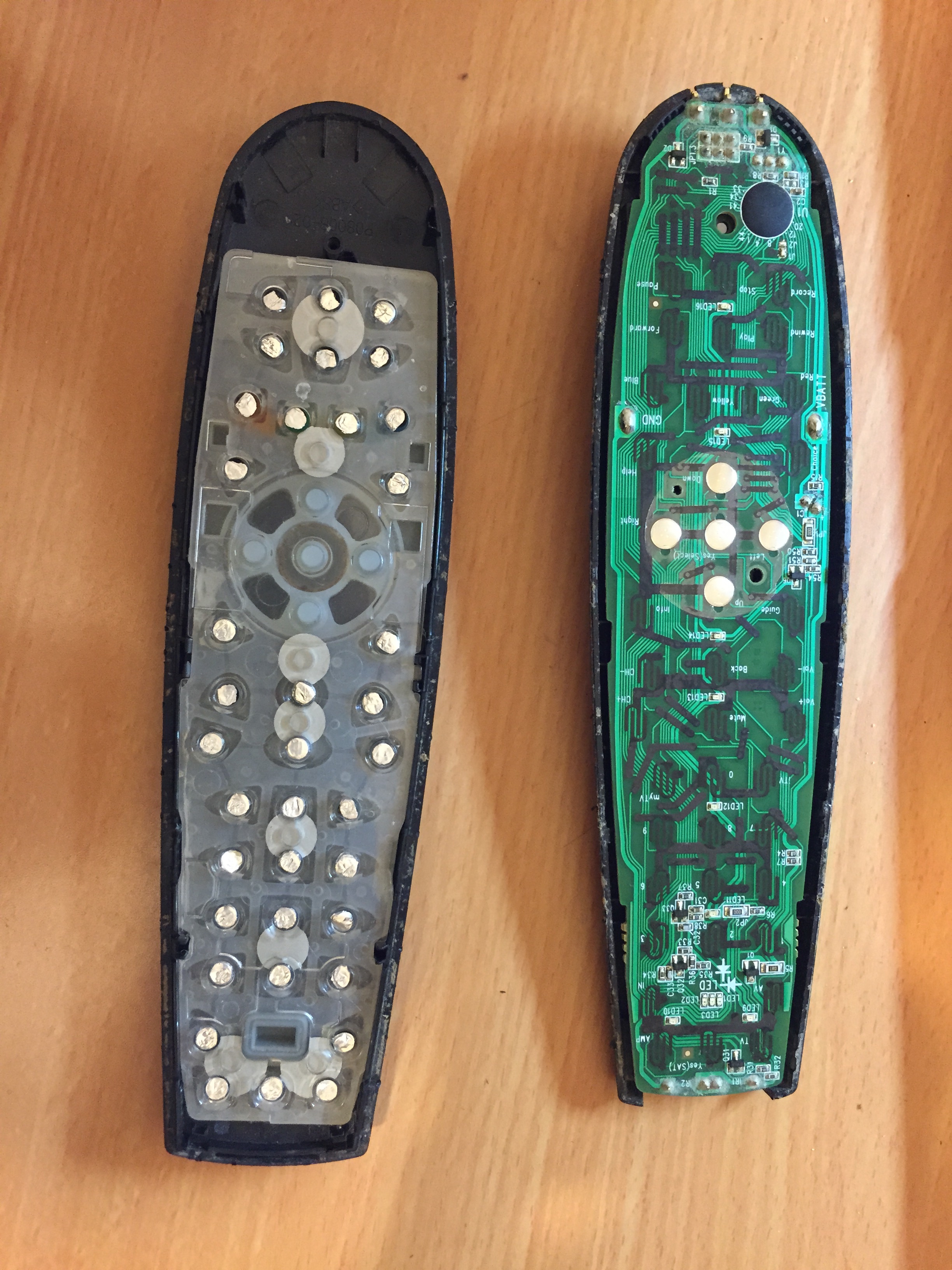
I found very quickly that the remote control itself work perfectly – when I used a screw to shorten its contacts it responded perfectly. I didn’t even have to check if it emits IR light because this model has an LED that flashes every time a button is pressed. I realised that the contacts at the other end of the buttons are worn out. So I decided to fix them by gluing small caps of aluminium foil onto them.

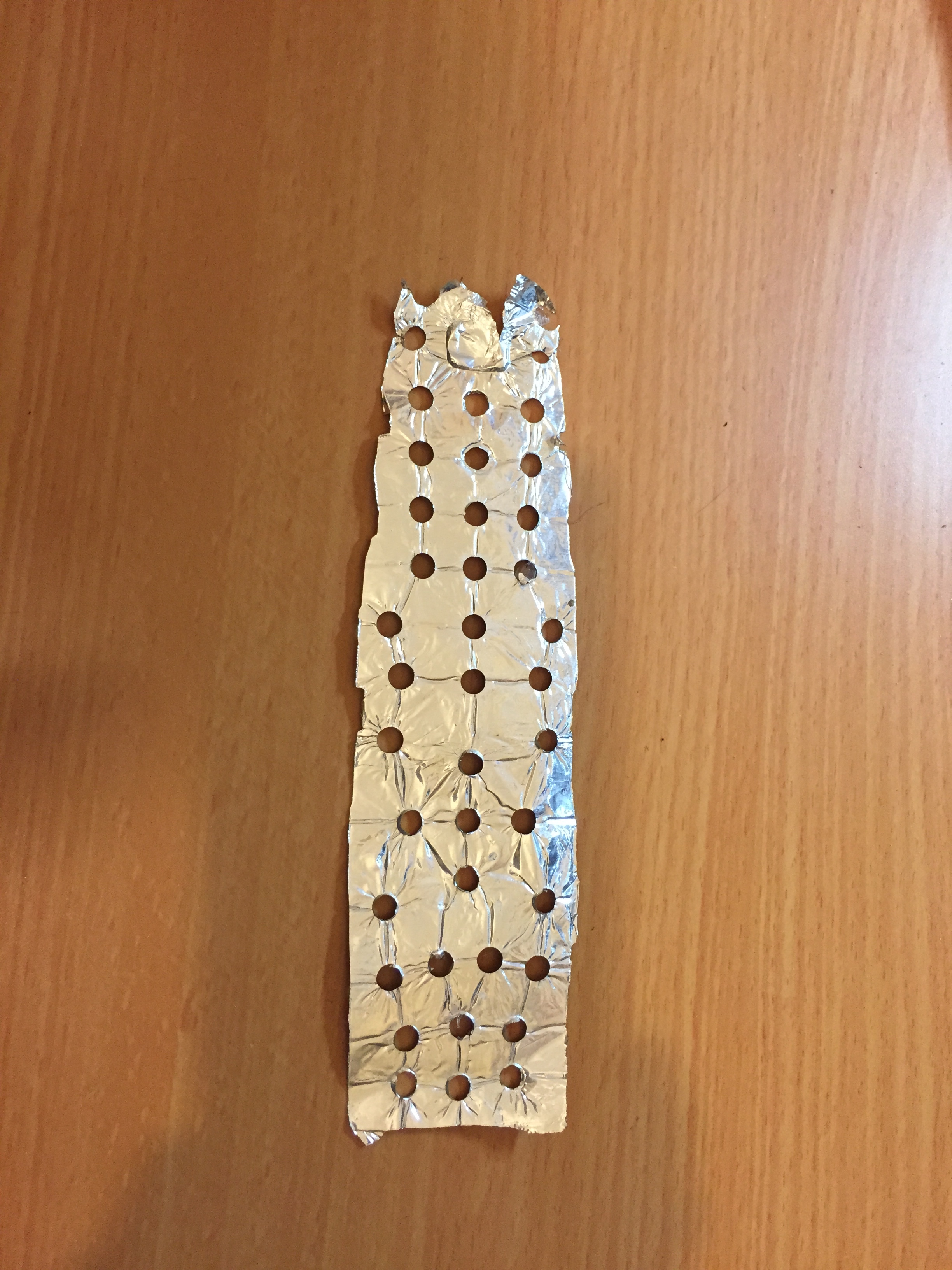
Luckily this model had a plastic frame with holes for the button, so I placed aluminium foil on the frame and punched nice round caps by pressing the button.IMG_5025


I then glued the caps to the buttons with a wee bit of glue to get this:

Fixed remote control

And now the remote control works perfectly except for the volume up/down buttons.

My first PIC project

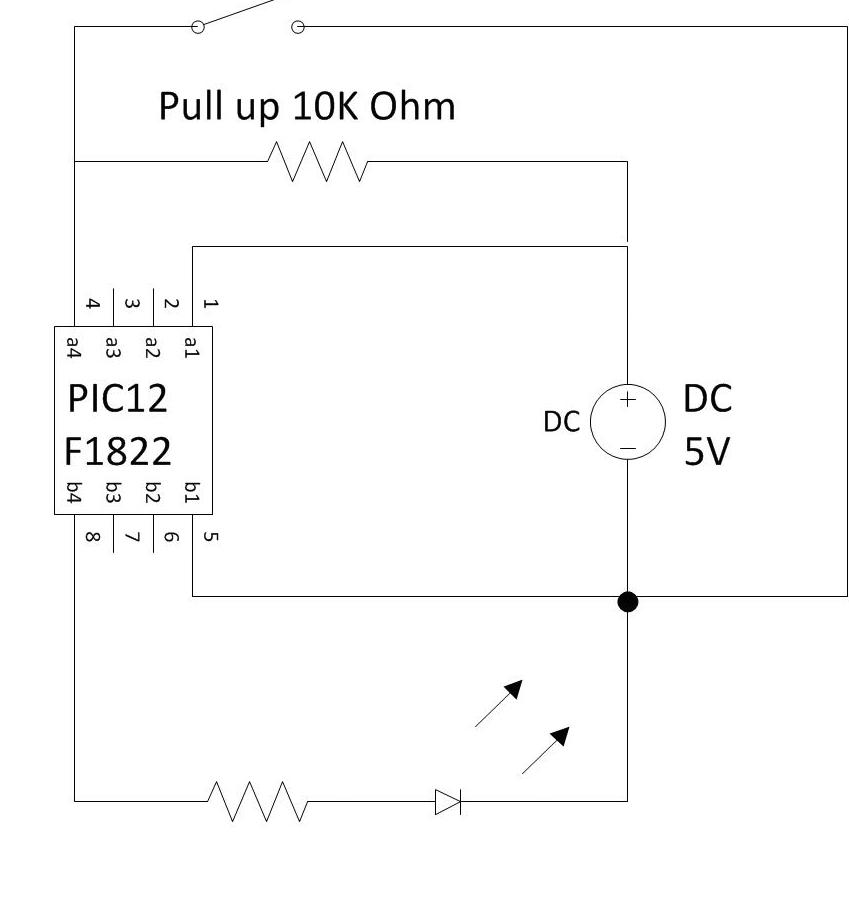
My first PIC project is very simple, kind of a PIC “hello world” program. My program reads the state of a push button and turns on a LED if the button is pressed.

This is the circuit:

test1schematic

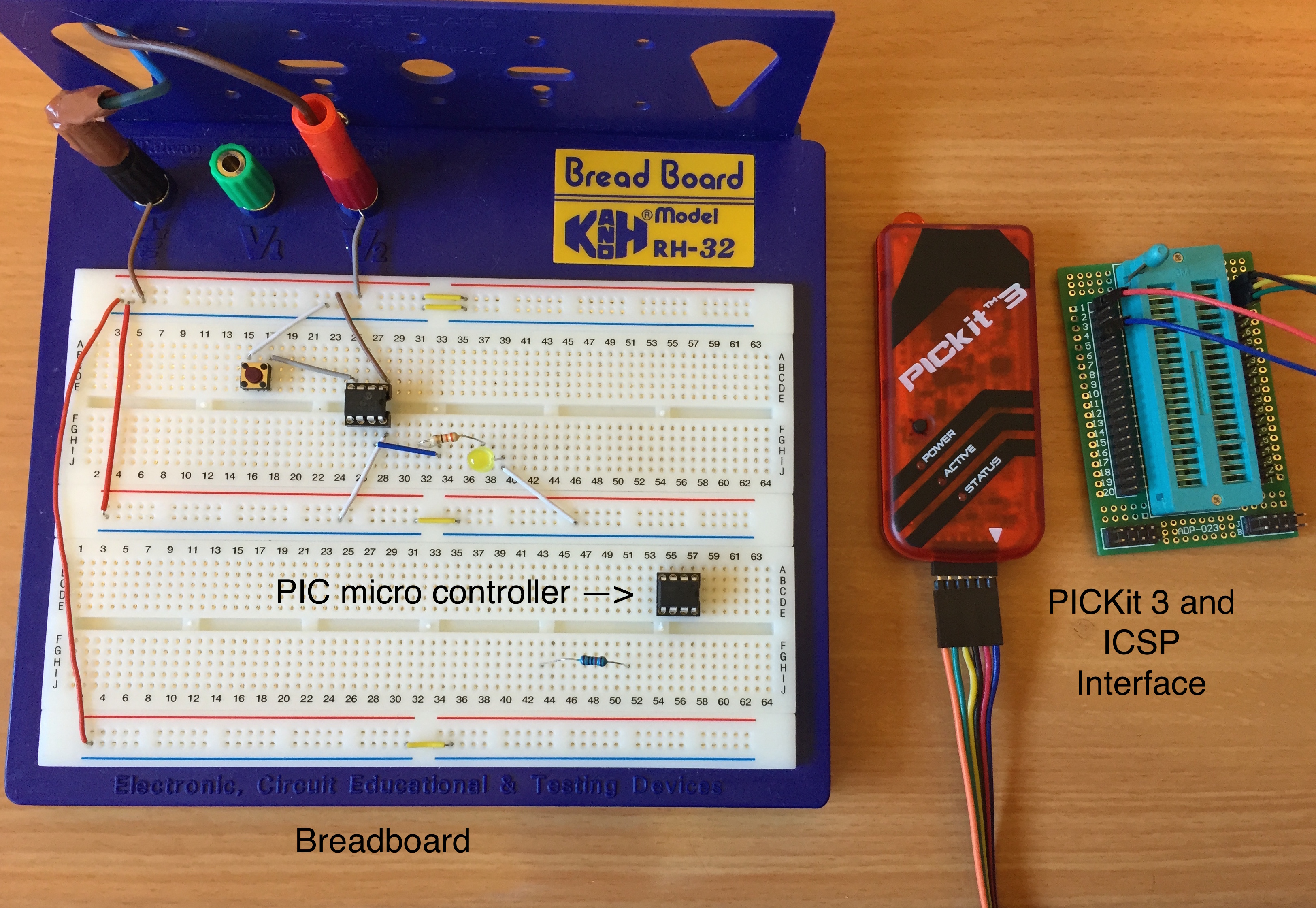
And this is how it looks on the breadboard:

PIC Test 1 Breadboard

Note that the 10K Ohm pull up resistor is not on the breadboard and the button is connected to negative. The reason for this is that the PIC12F1822 (and I assume all other PICs) has an internal pull up resistor. The pull up resistor connects the input pin (called RA3) to the +5V VDD pin and keeps it high. When the button is pressed it switches the input pin to low. Therefore the program turns the output pin (RA0) to high when the input (RA3) is low.

Page 3 of the data sheet contains a table that describes all the pins of the PIC12F1822. Note that all the input/output pins have internal pull ups.

This is the program:

#include <xc.h>

// CONFIG1

#pragma config FOSC = INTOSC // Oscillator Selection (INTOSC oscillator: I/O function on CLKIN pin)

#pragma config WDTE = OFF // Watchdog Timer Enable 
#pragma config PWRTE = ON // Power-up Timer Enable 
#pragma config MCLRE = OFF // MCLR Pin Function Select 
#pragma config CP = ON // Flash Program Memory Code Protection 
#pragma config CPD = ON // Data Memory Code Protection 
#pragma config BOREN = ON // Brown-out Reset Enable 
#pragma config CLKOUTEN = OFF // Clock Out Enable 
#pragma config IESO = ON // Internal/External Switchover 
#pragma config FCMEN = ON // Fail-Safe Clock Monitor Enable 

// CONFIG2
#pragma config WRT = OFF // Flash Memory Self-Write Protection 
#pragma config PLLEN = ON // PLL Enable 
#pragma config STVREN = ON // Stack Overflow/Underflow Reset Enable (
#pragma config BORV = HI // Brown-out Reset Voltage Selection 
#pragma config LVP = OFF // Low-Voltage Programming Enable 

void main()
{
    TRISA3 = 1;
    TRISA0 = 0;

    OPTION_REG = OPTION_REG & 0x7f;
    WPUA3 = 1;

    PORTAbits.RA0 = 0;

    while (1) {
        if (PORTAbits.RA3 == 0)
            PORTAbits.RA0 = 1;
        else
            PORTAbits.RA0 = 0;
    }
}

I will not describe all the configuration bits at this stage. Note only that I disabled the watchdog because I still don’t know how to keep it alive. I will definitely turn it on in one of the next projects.

Note also the OPTION_REG assignment and the WPUA3 assignment. These lines turn on the internal pull up resistor on pin RA3.

This small program gave me an opportunity to understand what “pull up” is about and I summarise it in the following short video. The video starts with the internal pull up disabled and without an external pull up resistor. You can see that the LED is on even when the button is open. Additionally, the voltage on RA3 is affected by moving my finger near it and we see that the LED flickers.

Then I place a 10K Ohm resistor between RA3 and +5v. This immediately stabilises the LED and it goes on only when the button is pressed.

Next I remove the resistor and replace the chip with another one that runs the program with the internal pull up enabled on pin RA3. In this case the LED behaves as expected and lights up only when the button is pressed.

Here is the video:

PIC – Motivation and Preparation

Learning to program and work with micro controllers is the fundamental step towards developing applications for quadcopters. Therefore I am going to spend some time on micro controller programming and share my new knowledge with my dear readers.

This first post will describe the micro controller that I chose to use and the preparation steps – what to buy and how to set it up.

I chose to work with the Microchip family of PIC micro controllers.

Why use Microchip PIC controllers?

I decided to accept my friend’s advice and start using PICs from the beginning. The main reasons for using PICs and not other controllers are:

  1. Price – they are cheaper then Atmel chips for example
  2. They exist for many years and are very reliable and stable
  3. Variety – there is a large number of controllers with different capabilities, so it should be possible to find a cost-effective controller for every application. Or, as Microchips says on their site: “Microchip provides solutions for the entire performance range of 8-bit, 16-bit, and 32-bit microcontrollers, with a powerful architecture, flexible memory technologies, comprehensive easy-to-use development tools, complete technical documentation and post design in-support”. And no, I don’t work for Microchip (but maybe I’ll ask them to put a link to my blog from their site).
  4. Tomer, my friend, uses PICs for his projects, so I can learn from him and ask for help when I get stuck. I think that at the end, this is the main reason for choosing PICs.

Preparations

We have to buy a few things and set them up before writing the first line of code for a PIC.

Stuff to buy

First of all you should decide which PIC micro controller you want to use and then buy one or two. You can get them from many sites on the net and in real stores. I decided to accept Tomer’s advice and use the PIC12F1822 just because it is cheap, simple and sufficient for my first project (a LED controller for my quadcopter) and … Tomer gave me two of them so I didn’t have to buy any.

The full shopping list is:

[table id=2 /]

Regarding the PICKit 3 programmer – Instead of buying the original Microchip product I bought a clone from eBay. It is cheaper but my MAC OS on two computers (Yosemite – running on a Mac Mini (mid 2011) and on a Macbook Pro 15 mid 2012) does not recognise it. I will describe a bad workaround below.

Tomer suggests putting the chip in a socket and moving it around inside the socket.

This is how this stuff looks like:

PIC Programming kit

Installation and set up

Download and install the Microchip MPLab X IDE and the XC 8 compiler. Both are free.

IDE: http://www.microchip.com/pagehandler/en-us/family/mplabx/

Compiler: http://www.microchip.com/pagehandler/en_us/devtools/mplabxc/

Download the data sheet for the PIC and start reading it. It is a fascinating ~400-page reading. In fact, you don’t have to read it all at once, but at least find the locations of the following pins of the chip that you need for programming:

  • VDD – power
  • VSS – ground
  • MCLR – I’m still figuring out what this is
  • ICSPDAT – programming data
  • ICSPCLK – programming clock

Download the PICKit3 user’s guide from here.

The IDE installer will offer to install the IDE and the IPE – the Integrated Programming Environment. Install both.

Connect the 6-wire programming connector to the PICKit 3 module (the red box) and connect the PICKit3 to the USB port of your PC.

Place the chip into the ICSP adapter and connect 5 wires of the programming connector to the corresponding pins of the adapter. The pinout of the programming interface are listed in page 10 of the PICKit3 user’s guide.

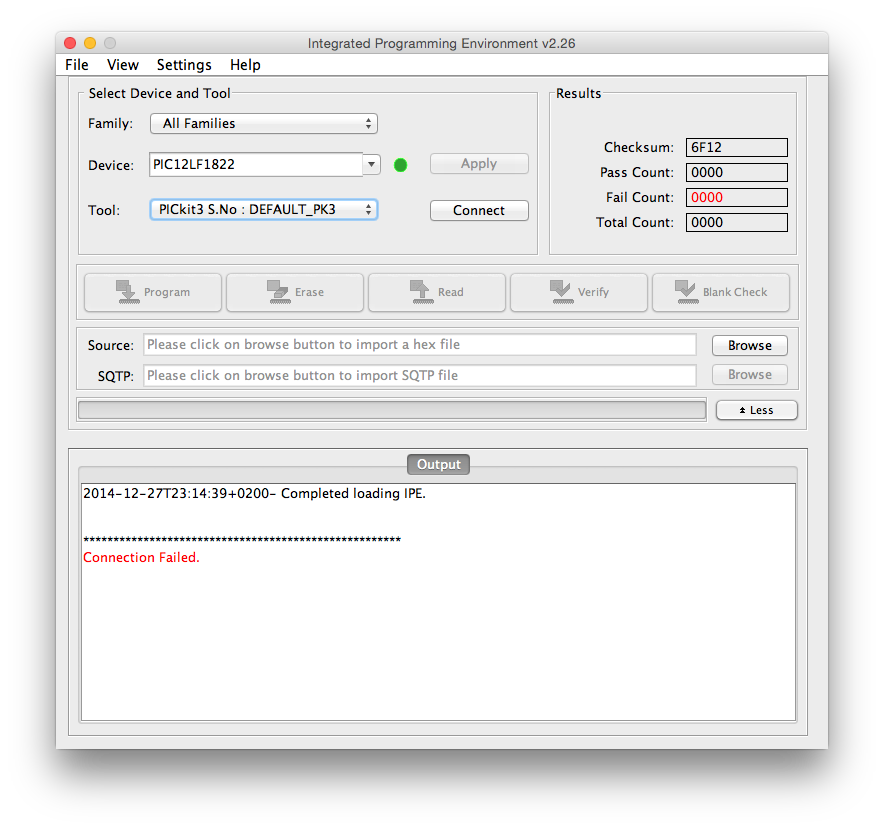
Then start the IPE – the integrated programming environment. Here is a screen shot of my IPE.

IPE screen shot

You should select the correct chip (Device) by first selecting the family and then selecting the chip from the drop-down menu. In the “Tool” field you should see the serial number of your PICKit 3. As you can see, the program does not identify my fake PICKit 3 so it says “Default_pk3”. This is not good but I have a work around for now and I intend to find the reason later.

Press on “connect” and it should connect (unlike my IPE above).

Once it is connected you are ready to go.

Workaround for using my clone PICKit3 on a MAC

The only workaround I found so far is to run a virtual Windows 7 guest on VirtualBox on my Mac. I place the project in a folder that is permanently shared with the guest machine. I run the IDE on the MAC and the IPE on the virtual Windows machine. I hope to find a solution before I need to use the debugger features of the PICKit 3.


My work bench power supply

I am going to need a power supply for my upcoming product development work. I decided to make one from an old ATX power supply – I have lots of them because one of my queer hobbies is to salvage old computers that people dump in the garbage and take them apart. So I have many old power supplies, and incidentally, here is my collection of old CPUs:

CPU Collection

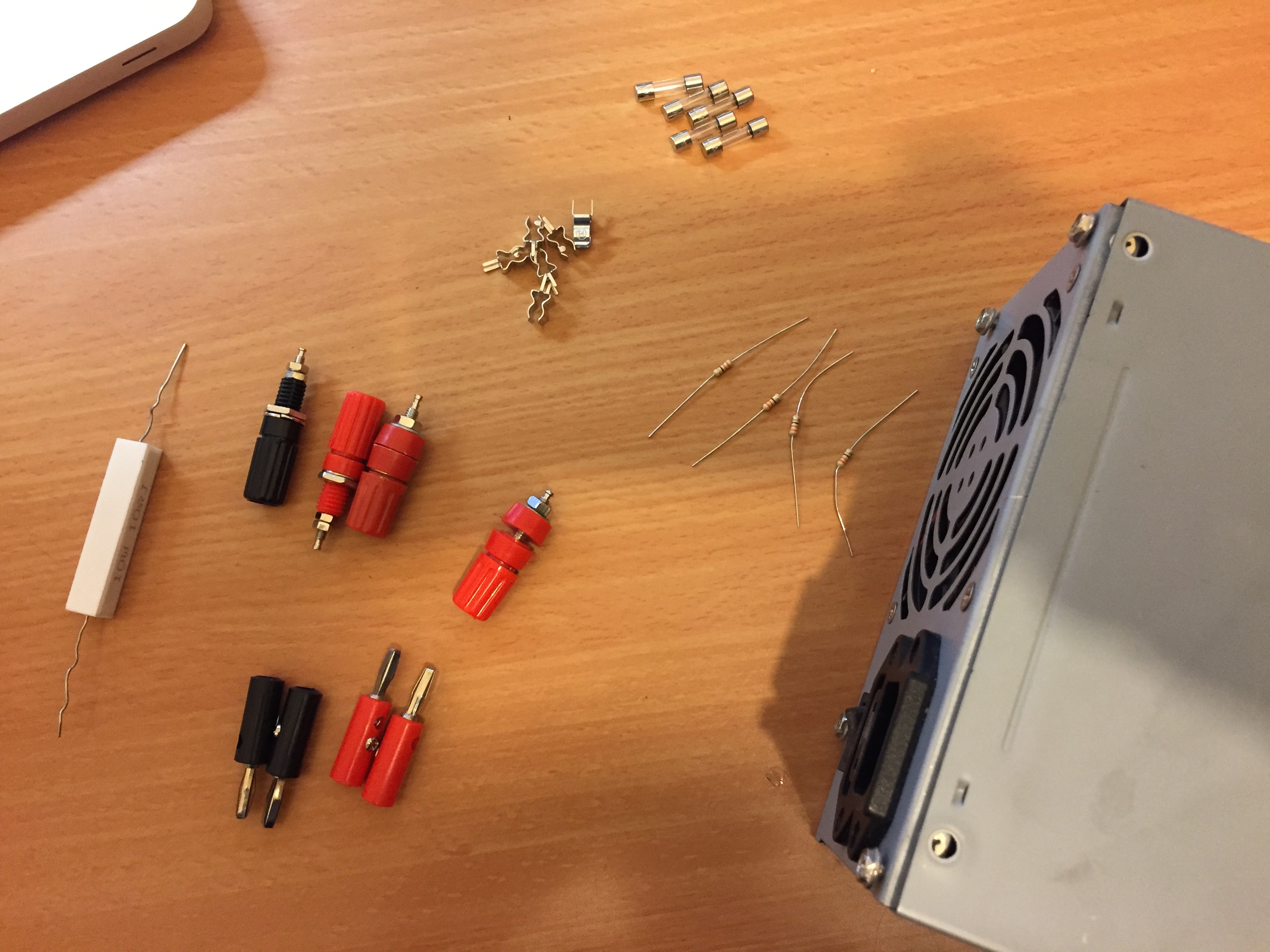
So I read some tutorials like this one, went to the one and only electronics store in Jerusalem and bought some stuff for about $11:

Parts for converting an ATX power supply

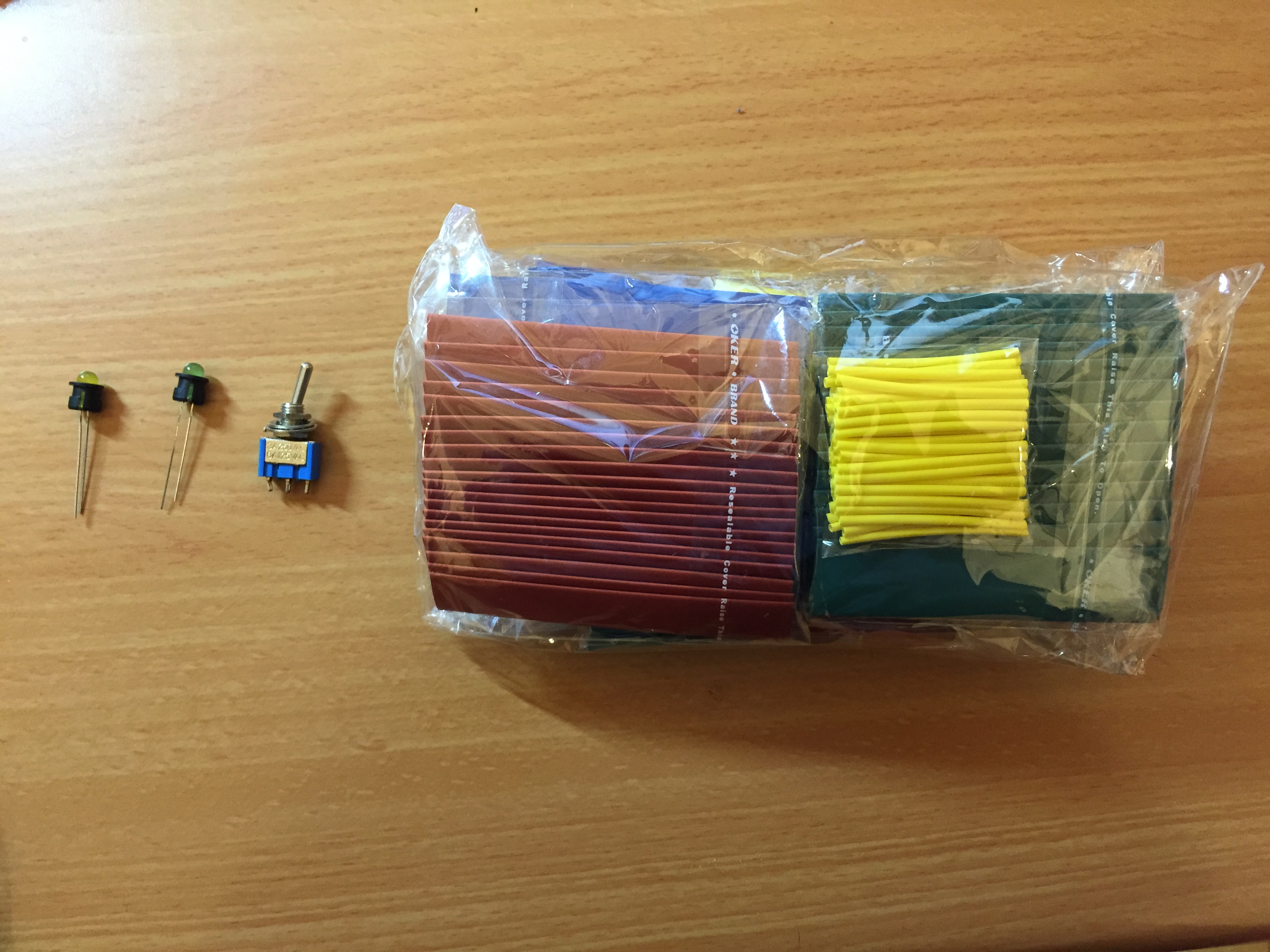
I also used some stuff that I had at home: LEDs, a SPDT switch and some heat shrink.

Stuff I had at home

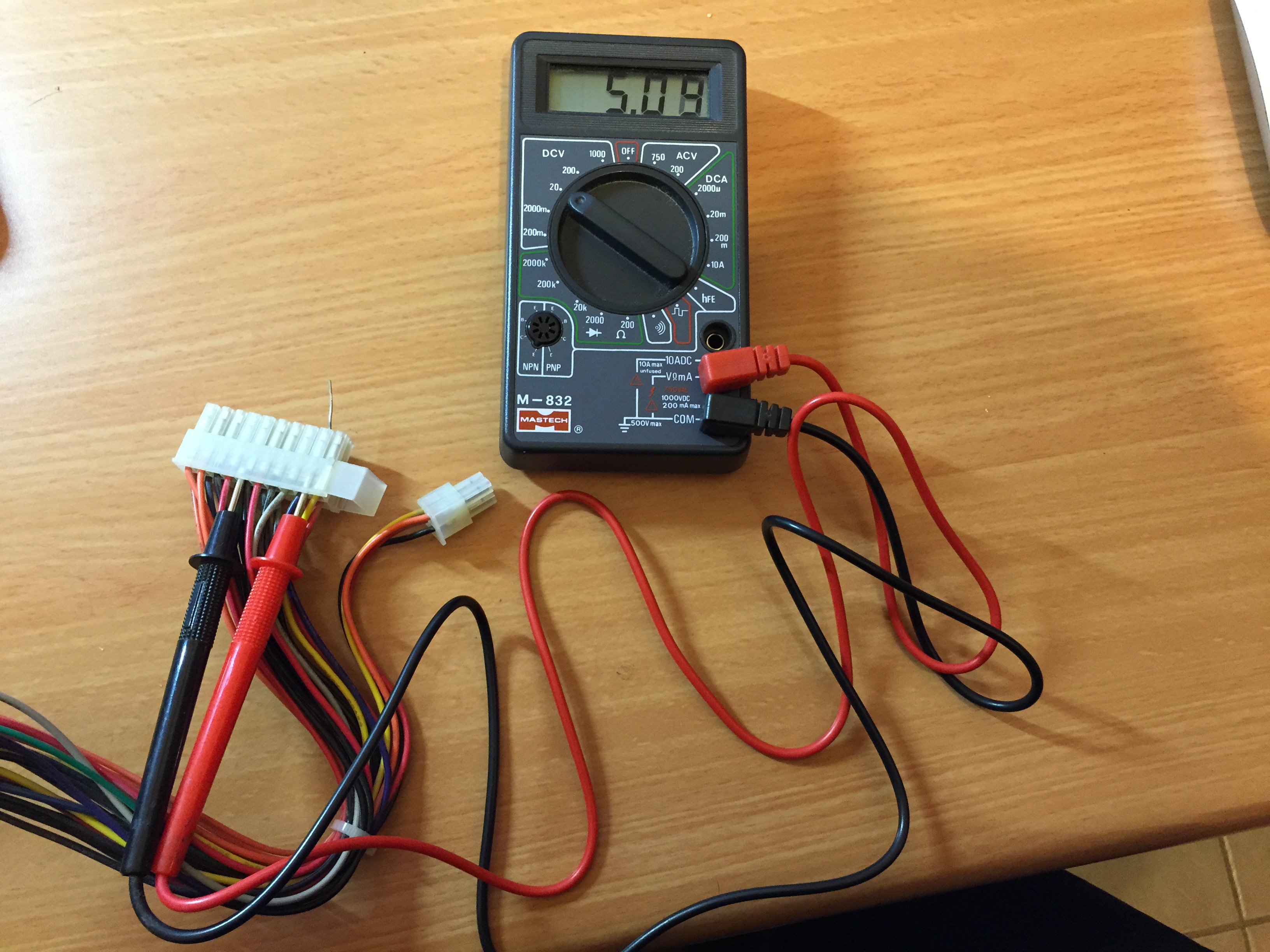
The first step is to test if the power supply works at all. One possible method is to test if it outputs a standby voltage (called +5VSB). This signal is used by a PC motherboard for functions such as “wake up on LAN” and other stuff it has to do when the PC is turned off. The standby cable is purple, so if I measure the voltage between the purple cable and one of the black cables I should see 5V. As you can see in the next photo, the power supply seems to be ok.

Testing the standby voltage

The next step is planning. I decided to install two LEDs. One to indicate that the power supply is  connected to the mains and the second to indicate that the power supply is on. The power supply will be turned on with a switch. I also decided to provide the following voltages:

  • Ground
  • +5V
  • +12V
  • -12V

These voltages will be useful for various purposes, including for charging my LiPo batteries where the charger input voltage is 11-18V. I decided not to use the 3.3V line.

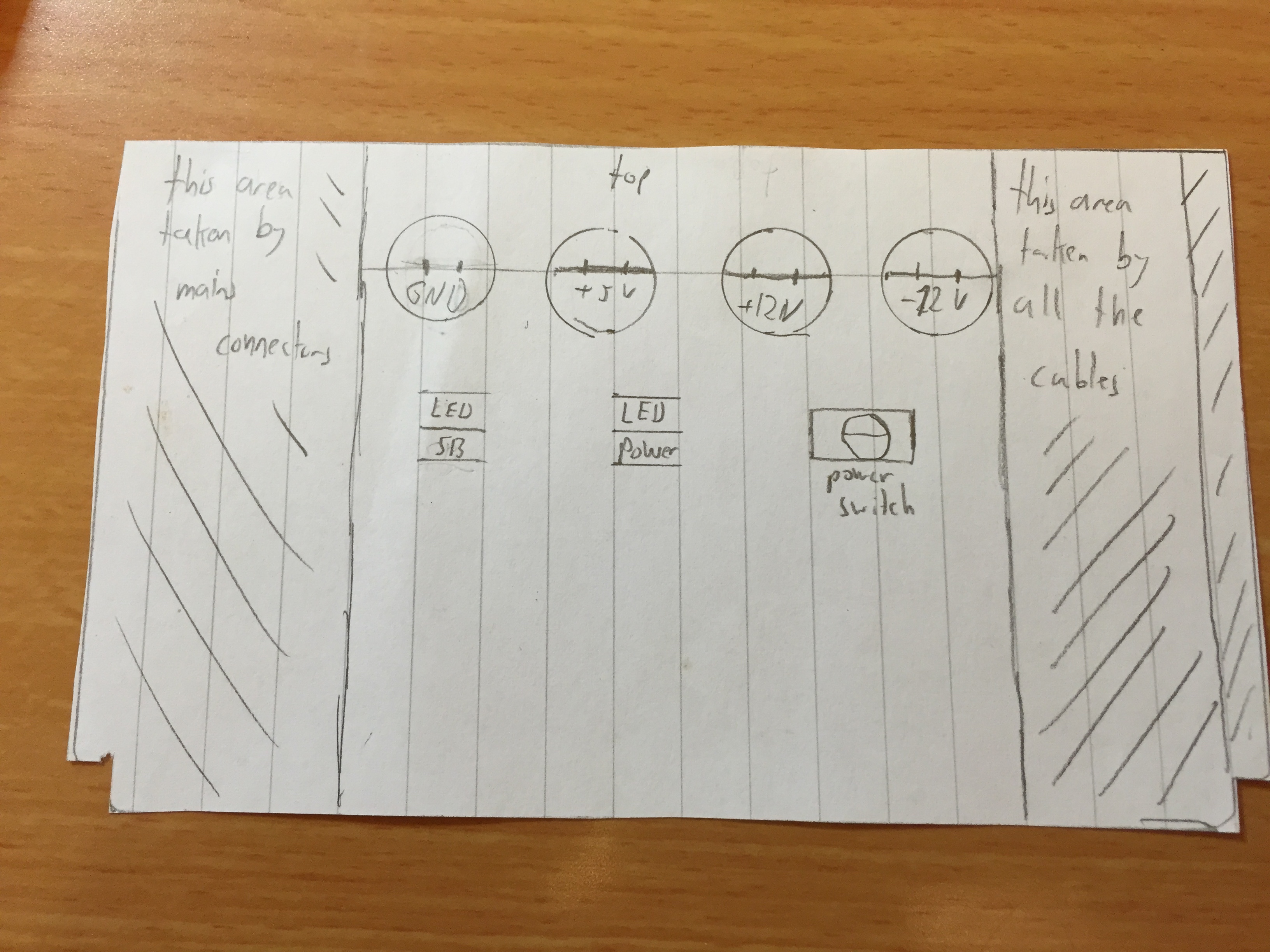
I cut a piece of paper to the size of the side of the power supply and drew all the connectors.

Connector plan

I started with soldering the LEDs to the purple (+5VSB) and the grey line (Power OK). I soldered a 330 Ohm resistor to the other leg and connected to resistor to a black (ground) line.

LEDs

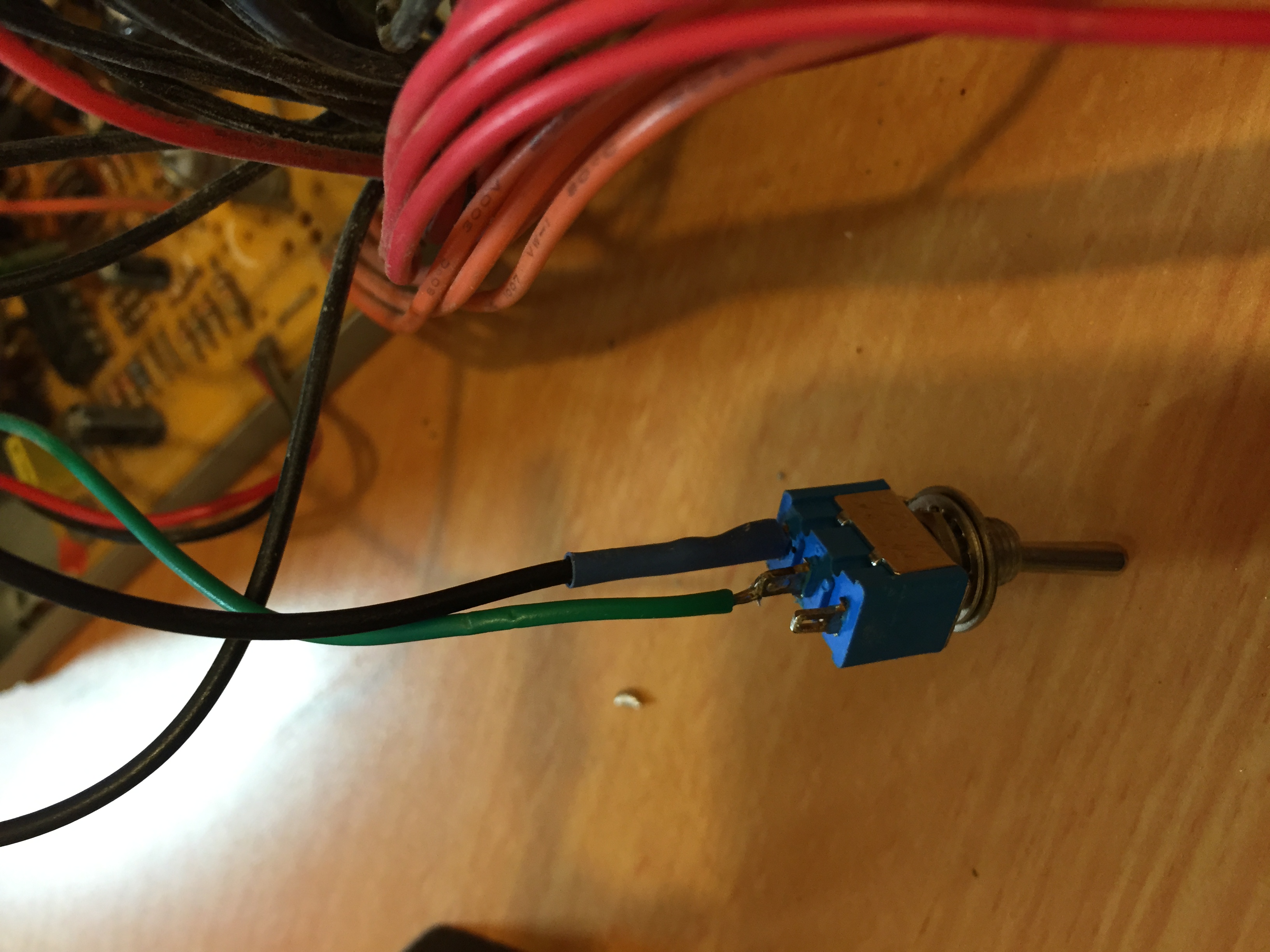
I connected the switch between the green line (Power on) and one of the black (ground) lines.

Power switch

I connected a load resistor – 10 Ohm 10 Watt – between one of the +5V lines (red) and ground. The purpose of the load resistor is to maintain a load on the power supply because the power supply shuts down if there is no load. I spread a small amount of heat sink to the back of the power resistor and attached it to the ventilated part of the power supply case.

Load resistor

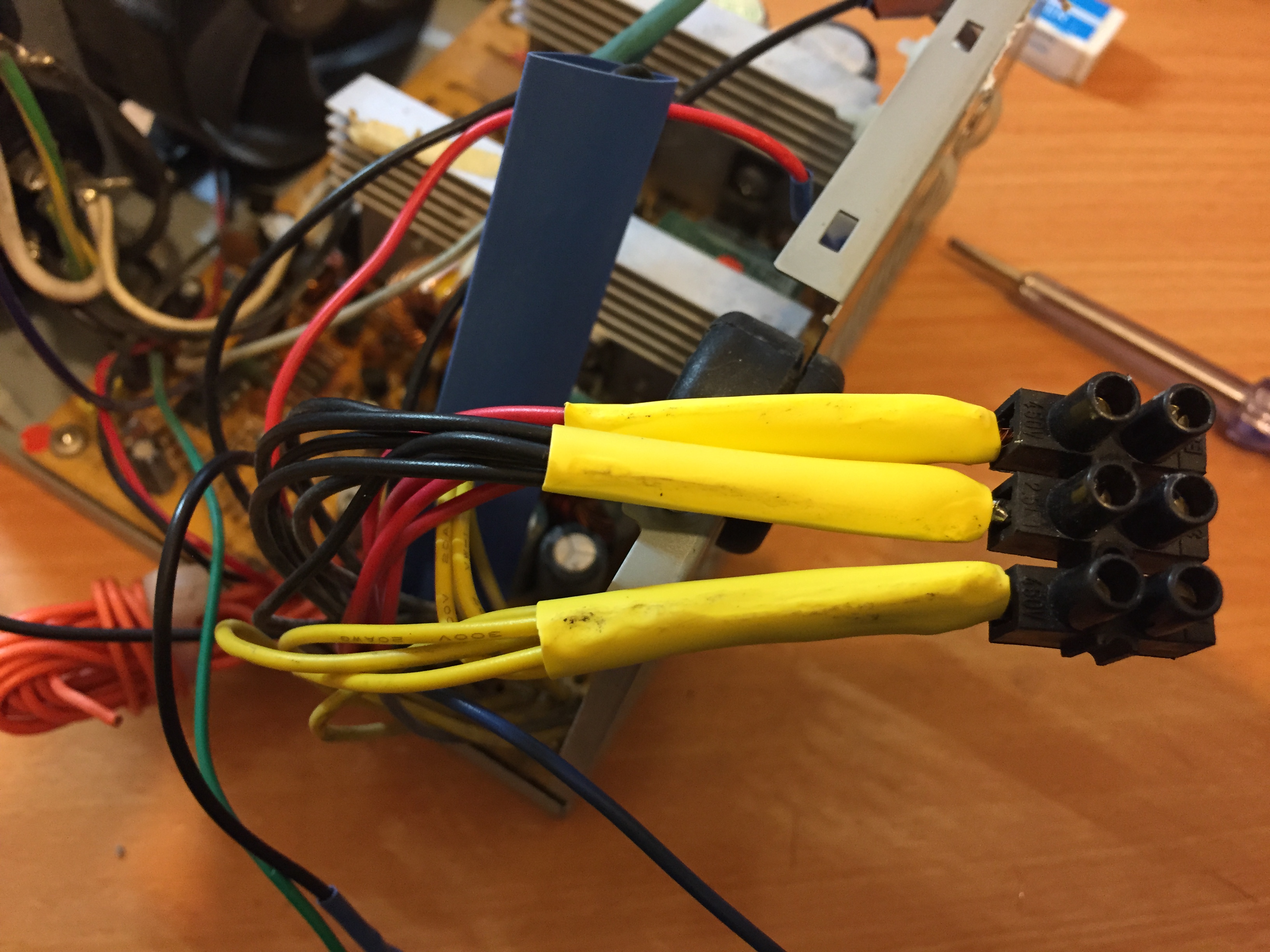
The I grouped the lines by color – black (ground) , red (+5V)  and yellow (+12V). I folded the orange lines (+3.3V) and secured them with a cable tie. I connected the black, red and yellow cables together and into a connector.

Output lines

The additional voltage of -12V is provided on a singe blue line that can be seen at the bottom of the photo above.

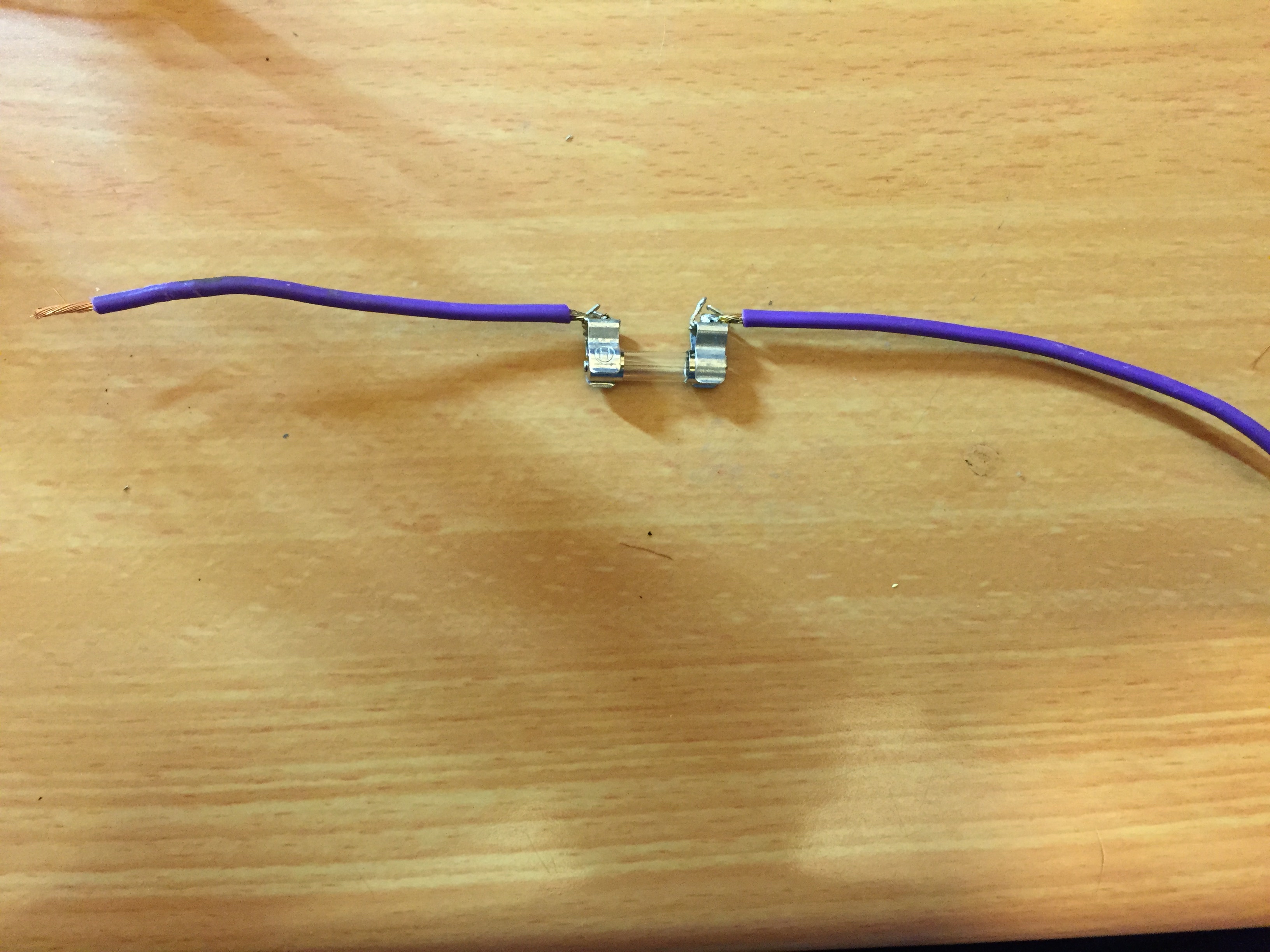
I decided to install a 1A fuse on each voltage line. I’m not totally sure it is necessary because these power supplies are protected, but it seemed to be a good idea. I will have to change the 1A fuse to a higher current one when I will start to use the power supply to power my LiPo charger – I still didn’t check the current requirements for the charger, but its display shows 4.5A when it is charging.

Fuse

I covered each fuse in a wide heat shrink sleeve.

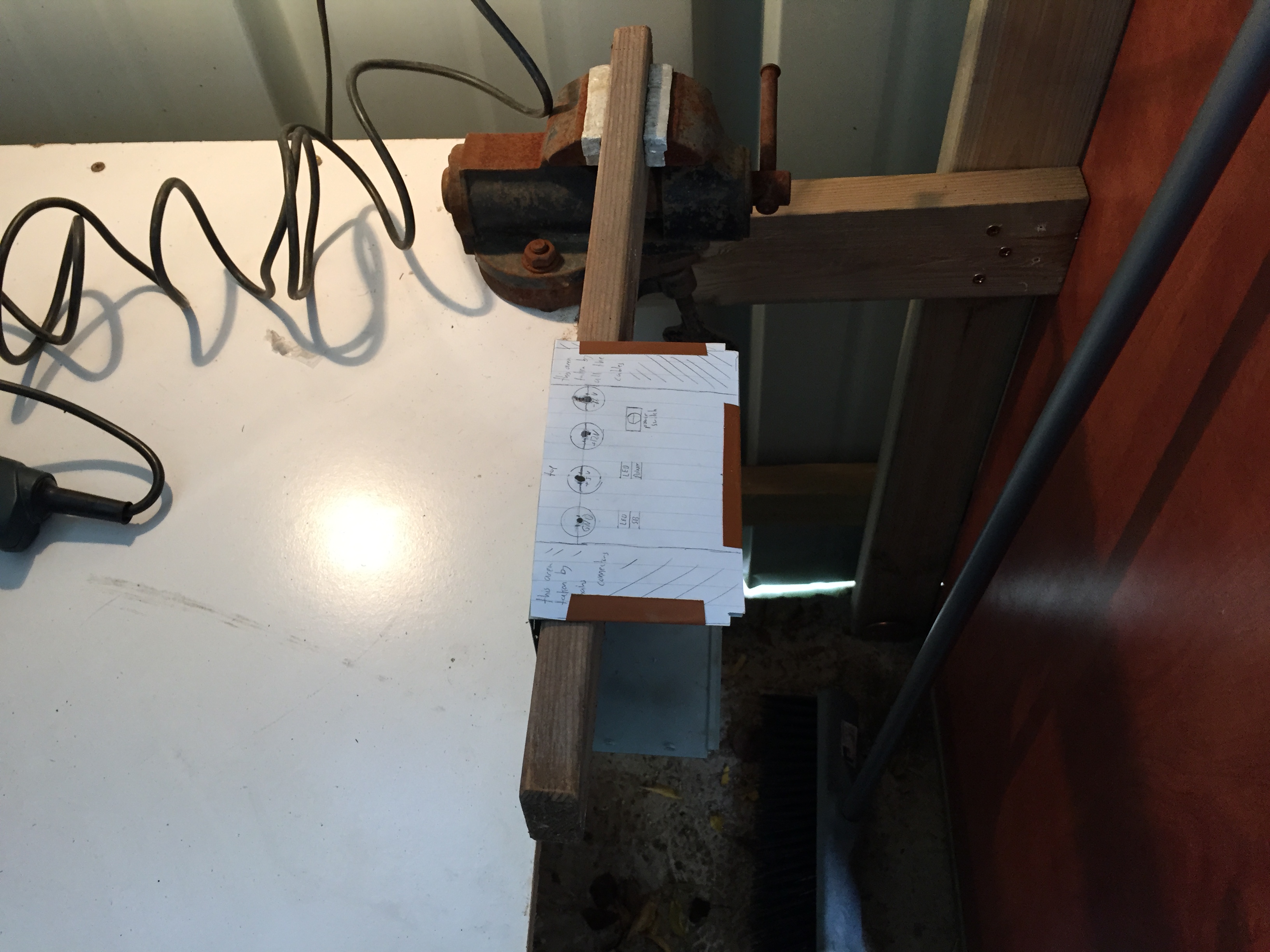
The next challenge was to drill the holes in the cover. I tried various drill bits and various ways to hold the cover in place until I finally found this to work – holding a piece of wood in the clamp, placing the power supply cover over it and drilling with my power drill.

Drilling Holes

I inserted the binding posts and all the other components, soldered the wires and drew two nice labels.

Labels

I closed the power supply and started testing. All seemed to be ok. The SB LED came on when I connected the power supply to the mains. The Power LED came on when I flipped the switch. The voltage between GND and -12V and between GND and +5V was ok, but there was no voltage between the +12V and GND. I also noticed that there was a spark when I touched the power supply cover to the body and the +12V fuse was burned. I burned another fuse before I realised that there is a short circuit.

It took me some time to understand that I bought two different types of binding posts. One type had a plastic sleeve that went through the hole. The other type had a narrow metal connector. This connector touched the cover and was shortening.

The solution was to cover the metal connected with a heat shrink tube as can be seen in the next photo (the one on top is covered in green heat shrink)

Covering the binding post connector

I had to enlarge the hole in the power supply cover and drill through the red plastic connectors.

When I assembled the power supply again it worked perfectly.


Fixing a broken HJ-450 arm

As I reported in a previous post (an expensive evening), I broke the arm of Misha’s HJ-450 frame.

I decided to glue it back together with epoxy glue. I don’t remember the brand of the glue which I use, but here is a photo:

IMG_4270
Epoxy glue

I covered the broken edges in a large amount of glue and let it dry for a day:

Glued HJ-450 arm

And … very surprisingly … it held out so far in about 20 landings, some of them not very gentle.

Repairing cracked propellors

Nylon propellors crack easily. Even light collisions with the ground will crack them. However. I also found that they can be fixed by taping them with transparent tape as shown in the photo. I don’t feel any adverse effect of this fix on the way the quadcopter flies.

A cracked propellor fixed by transparent tape

A cracked propellor fixed by transparent tape


An expensive evening

I’m a strong believer in putting my money where my mouth is and since I consider my Naza based quadcopter easy to fly I let my friends fly it. We meet almost every evening in our local dog park that doubles sometimes as a tennis court.

So this evening I let A. fly it for his third or fourth time and he did a great job. We even let E. fly it for the first time for a few minutes. By then the battery almost ran out, the red warning light was blinking, and we were going to land. Just at this moment Johny joined us and asked for a short ride. He flew it several times already so I said ok.

Johny lifted the quad into the air and flew it a few meters away. Suddenly, and I still don’t know the reason for it, the quad rolled at a steep angle and fell from about 3 meters right on the tennis net.

At first it seemed undamaged, but when I tried lifting off again it flew away to the right and I saw immediately that one engine shaft was bent.

A bent engine shaft

A bent engine shaft

This was the second accident this evening. Just before that I flew my quadcopter 2 which has a Hobbyking multicopter flight controller and I still struggle to learn to fly it.

In my last flight for today I lost control over it completely, it flew fast and downwards and hit a stone fence. One of its arms was broken.

Broken quadcopter arm

Broken quadcopter arm

So right after this sentence I will try to glue the broken arm and straighten the bent engine shaft. I believe none of these fixes will work  😦

iMax B6 – Connection Break fix

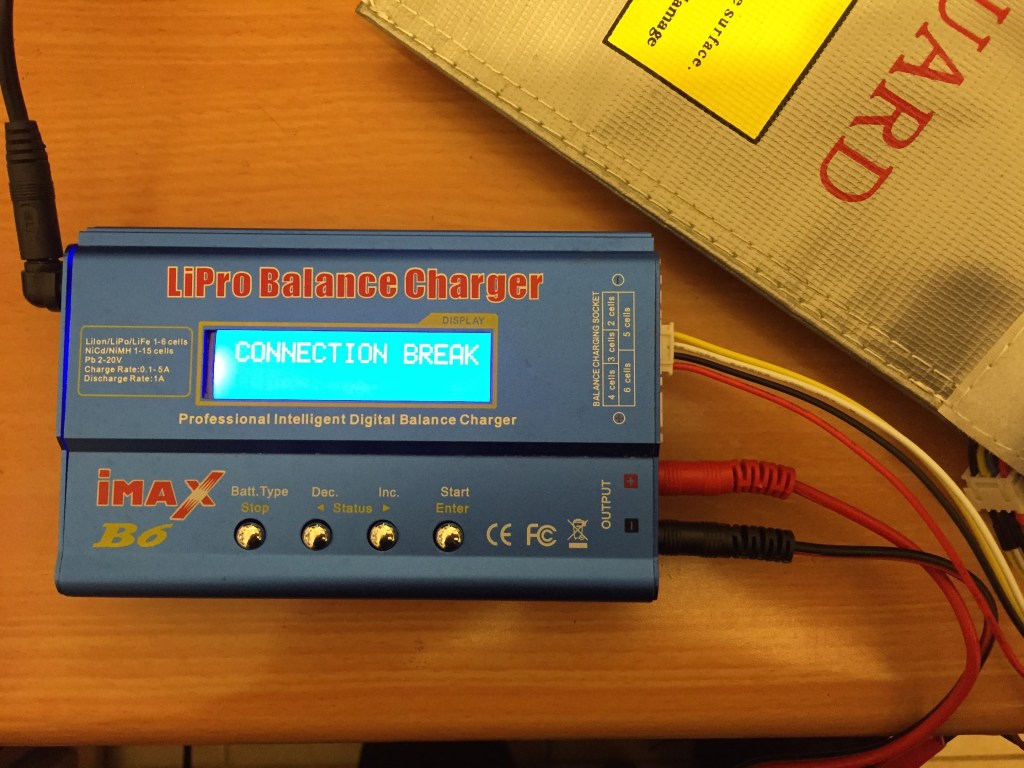
One day my loyal fake iMax B6 charger stopped working. Instead of beginning to charge it beeped ferociously and showed this message on the display:

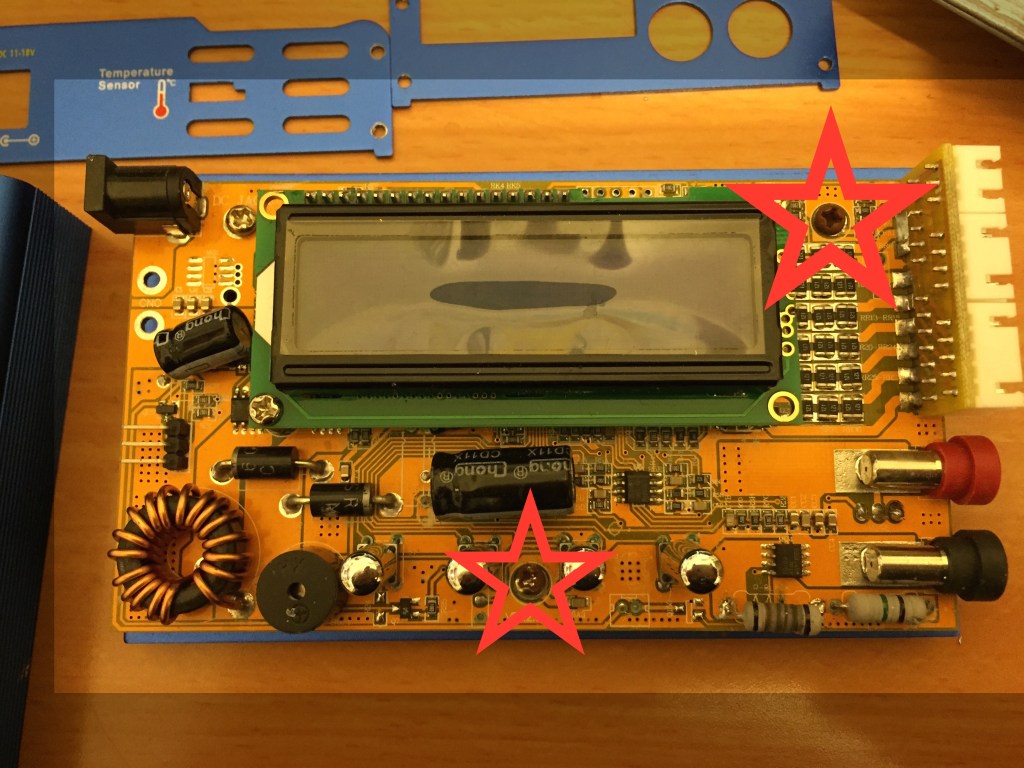
I unscrewed the 8 screws on the sides of the box and opened the charger. At first I noticed that it was wet inside. There were traces of water and the screws connecting the PCB to the bottom plate were rusty! I marked them in the image below.

I didn’t know how it became so wet but I figured it must have stood near an open window while it was raining outside.

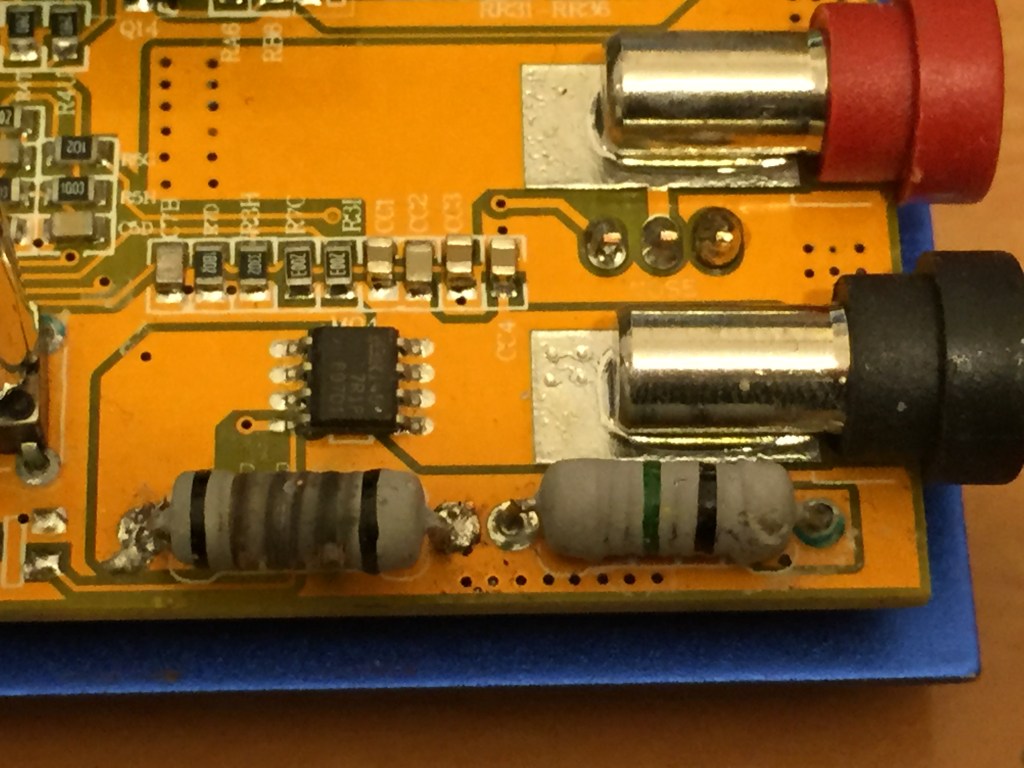
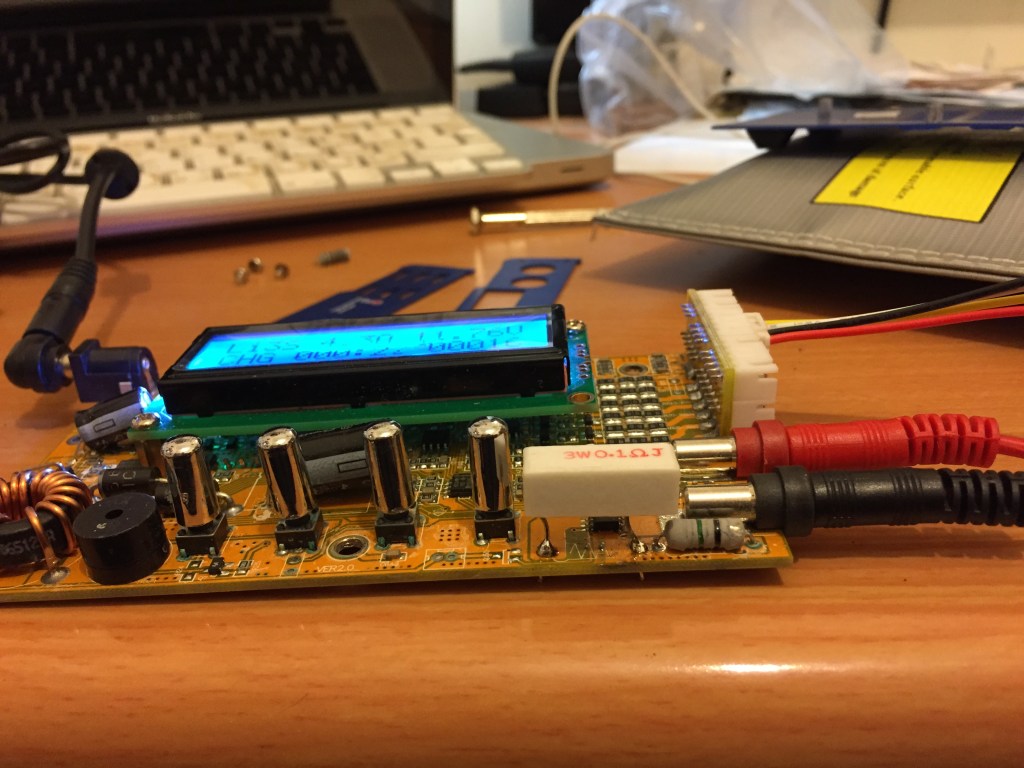
Except for the rusty screws everything seemed to be ok and the display was working fine only it wasn’t charging, so at first I couldn’t find the problem. But then a friend of mine saw that the left resistor at the bottom right side looked burned, as you can see in the next photo.

To verify that this is the problem we measured the resistance of the resistor and found it is very high (we couldn’t tell what it should be because the color stripes lost their original colors). We figured that it couldn’t get so hot and burn if the resistance was meant to be so high.

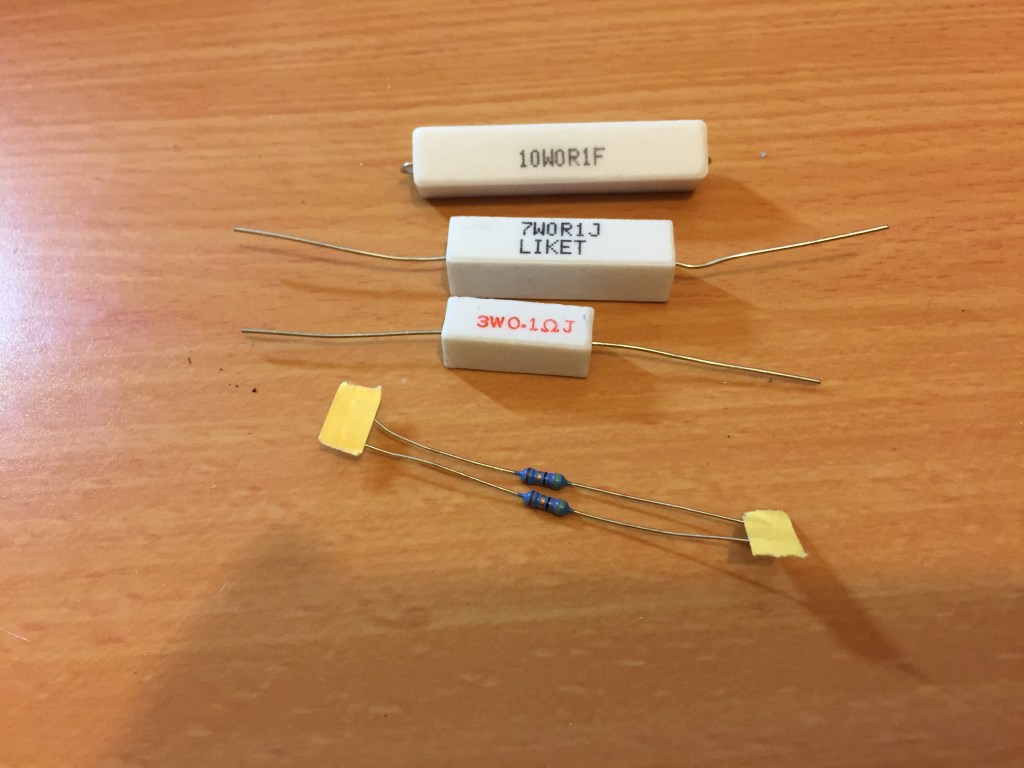
My friend explained that this resistor is probably acting as a fuse. So I went to my favourite store in Belfast (Northern Ireland) – Maplin Electronics and bought an assortment of low resistance resistors for about 4 pounds (I bought two of each).

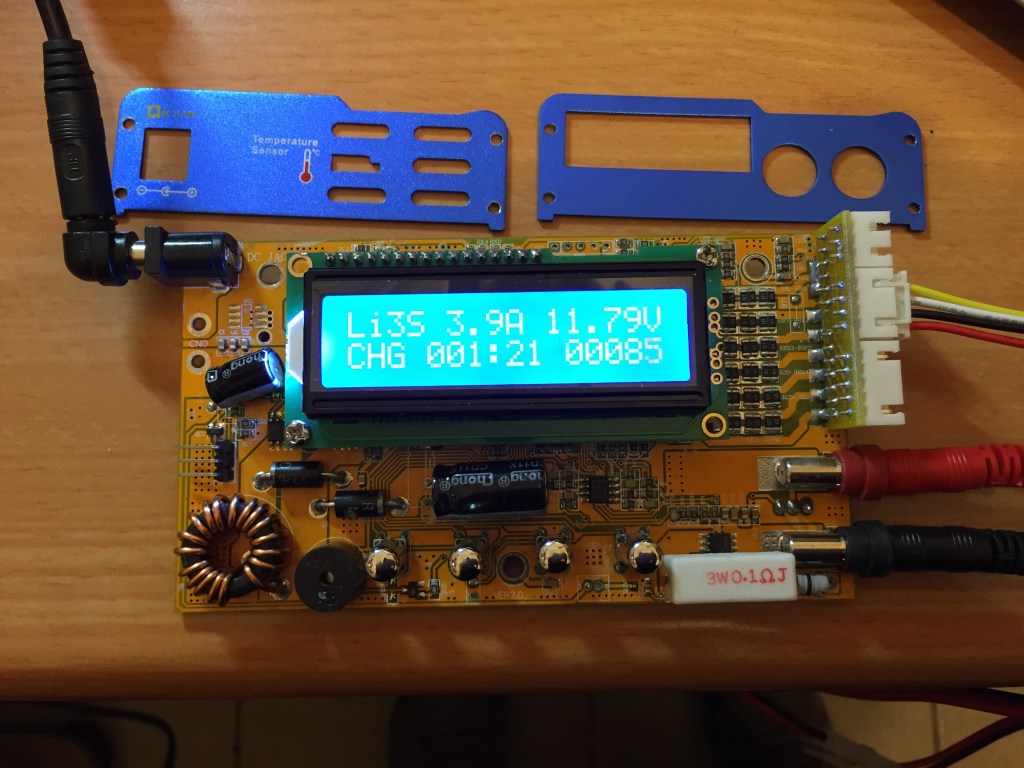
I soldered the 3W resistor in place of the burned one:

And here is a photo from the top. You can also see in this photo that the charger is charging again at 3.9A.

I just hope that the resistor on the right will not burn since there in no place for an additional resistor of the size that I bought …

Quadcopter 1: Assembly

Quadcopters are relatively easy to assemble but it took me the better part of a month to assemble Quadcopter 1 – my first quadcopter.

Figure 1 below shows the components of Quadcopter 1 and their connections to each other. In the following sections we explain how each sub-system is assembled.
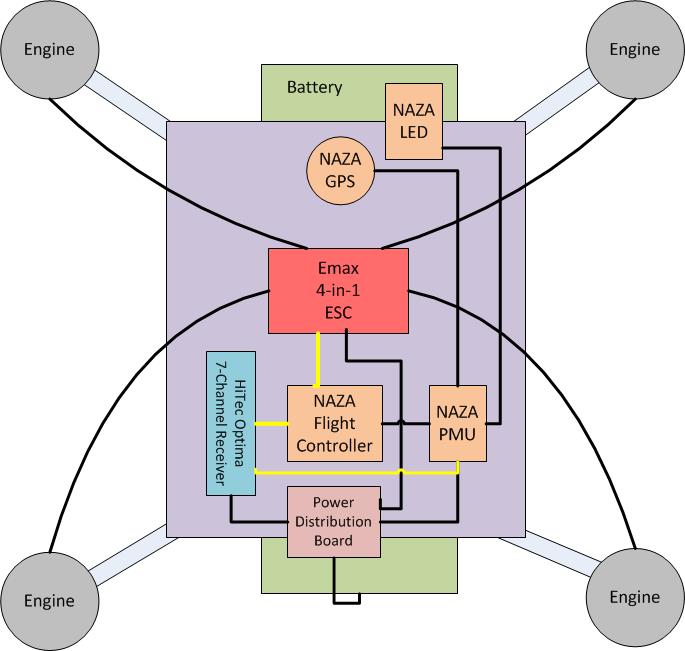
Figure 1: Quadcopter 1 schematic diagram

Figure 1: Quadcopter 1 schematic diagram

The black lines in figure 1 show the power connections and the yellow lines show the control connections.

Figure 2 shows the assembled quadcopter.

quadcopter1-assembled

Figure 2: Quadcopter 1 – assembled

Frame assembly

The frame arrived as a set of flat carbon fibre pieces and a small bag of screws and spacers. I had to study carefully the photos of the assembled frame on eBay in order to understand how to assemble it. Here is one photo for example.

Figure 3: Zoom in on the top and front part of the frame

I used 2 mm and 2.5 mm hex screw drivers.

Figure 4: Hex screwdrivers

Battery and the power distribution board

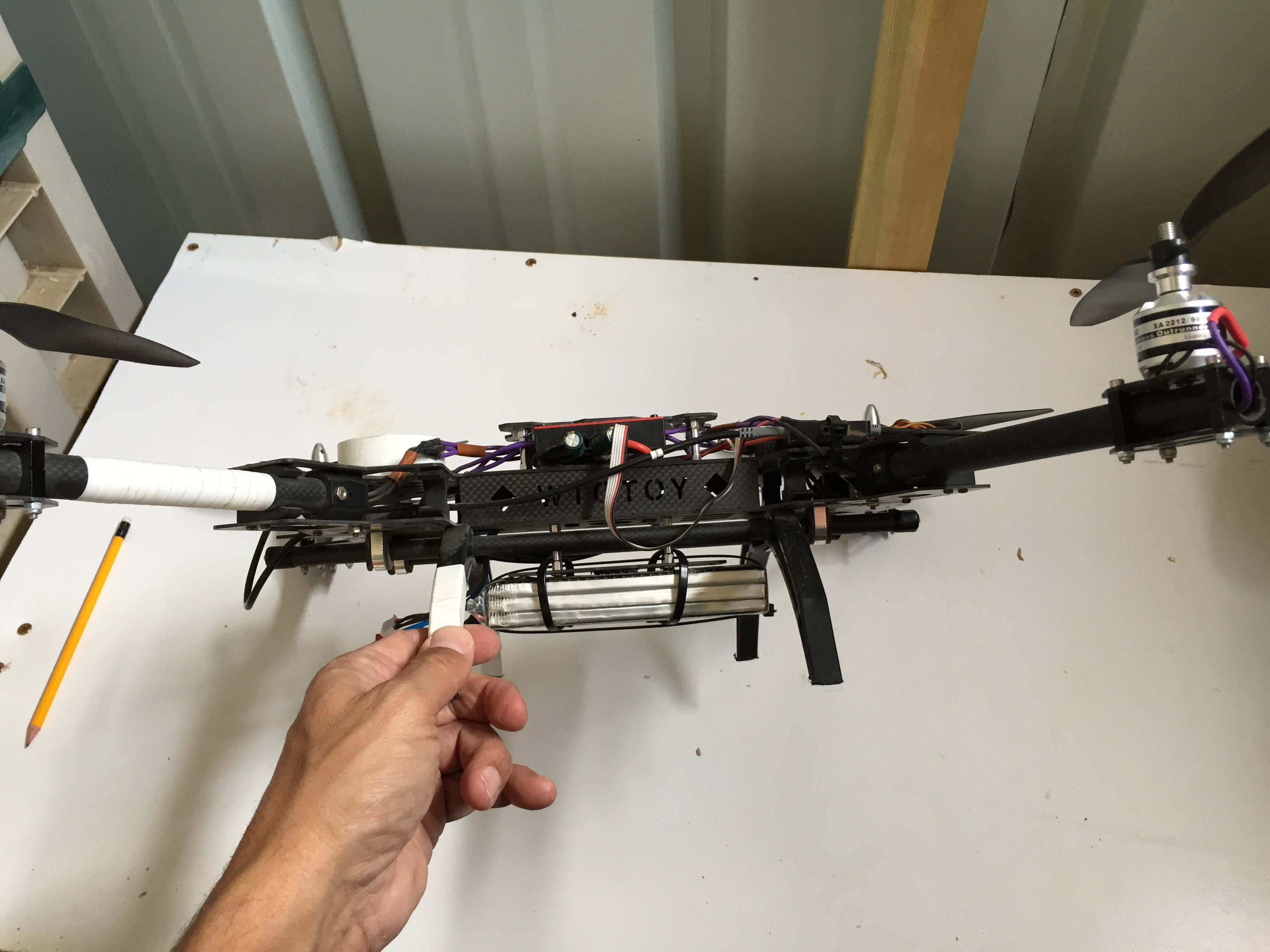
I decided to connect the battery with cable ties to the bottom of the frame because I’m not planning to use quadcopter 1 for photography and I will not connect a camera at the bottom.

Figure 4: Battery connection

Figure 4: Battery connection

After some trial and error I decided to use a double-sided PCB for the power distribution board. I soldered two 1.5 mm cables to both sides of the PCB and the two other ends to a Deans plug.

Note that the the power cables must be thick enough to allow the high power consumption of the ESC. At first I soldered thin cables that overheated very quickly and started to melt the plastic cover of the Naza flight controller at the point where they touched it. I then replaced the thin cables with 1.5 mm cables.

Engines and the 4-in-1 ESC

I soldered gold plated plugs to the three leads from each engine. I also soldered an extension of 1.5 mm cable to each of the cables that came with the 4-in-1 ESC because the original cables were too short for my large frame. I covered all the solder points with heat shrink tubing.

I passed the cables from each engine through the hollow engine arms.

The 4-in-1 ESC fits nicely on the center of the frame under a small cover that is screwed to four spacers. Figure 5 shows the ESC assembly.

Figure 5: ESC assembly

Figure 5: ESC assembly

The ESC is held in place by velcro on it’s bottom and the cover piece with the text: “WTOTOY”

Naza components

The Naza system consists of the following components:

  • Flight controller
  • GPS
  • Power management unit (PMU) – distributes power to the components of the system.
  • LED module – indicates the system status and connects the controller to a PC for configuration.

I followed the assembly instructions in the Naza-M Quick start manual but I made a few changes in the location of the components as follows:

  • The flight controller is not exactly at the centre of gravity (CG) of the vehicle. It is located astern of the ship (on the back).
  • The GPS is also not at the center of gravity but on the bow (forward) of the airship. In the beginning I used the pole that came with the package and glued the GPS case (the white plastic protector around the GPS unit) to it right at the CG. However, after the first few crashes I realized it will be much safer if I attach it to the frame itself.

At first I connected the flight controller and the GPS with velcro strips but then I realised (I realised many things during the process  🙂 ) that the velcro allows the flight controller to move and shake a bit and this is certainly not good. Therefore I replaced the velcro with double sided glue strips similar to these – some were provided by DJI in the Naza package but I bought a few more myself.

50Pcs Double-Sided Adhesive 3M PE foam Sticker Size 25MMx40MM For RC Model Gyro

This glue is very strong after it bonds, but it is always possible to pry it off with a knife.

The receiver

I attached the Hitec Optima receiver with velcro strips to the back side of the frame near the flight controller. The choice of location was mainly because of the short servo cables that I had for connecting the Naza to the receiver. A side advantage is that it is also protected by the strong carbon fibre frame.

optima-receiver

Figure 6: The Optima receiver

Landing gear

The landing gear that came with the frame has very long plastic “legs”. It looked really good when it stood on these legs on my desk but they were too elastic, so often when the ship landed not completely softly it would bounce up and land on its back or side. This went on for quite a long time and through many crashes.

Luckily, if I may say so, I once completely lost control over the quadcopter and turned on the RTH (return to home) feature. When a Naza goes into RTH mode it first climbs to a height of 20 meters and then heads home. On that particular occasion the winds were very strong and the screws holding one of the engine to the frame became loose during all the crashes. So suddenly the engine broke loose and the ship crashed from 20 meters to the ground. Amazingly, all the carbon fiber parts were almost not damaged but one of the plastic legs broke. I didn’t have a replacement so I decided to cut the other three legs to the same length and suddenly I realised that this is perfect. The short legs are not elastic any more and when the craft lands it sets squarely on its legs and doesn’t bounce at all.

So I definitely recommend using a non-elastic landing gear. I am not planning to install a camera under the frame so I am not going to replace the legs that I have even though they are quite short.

Marking the “front”

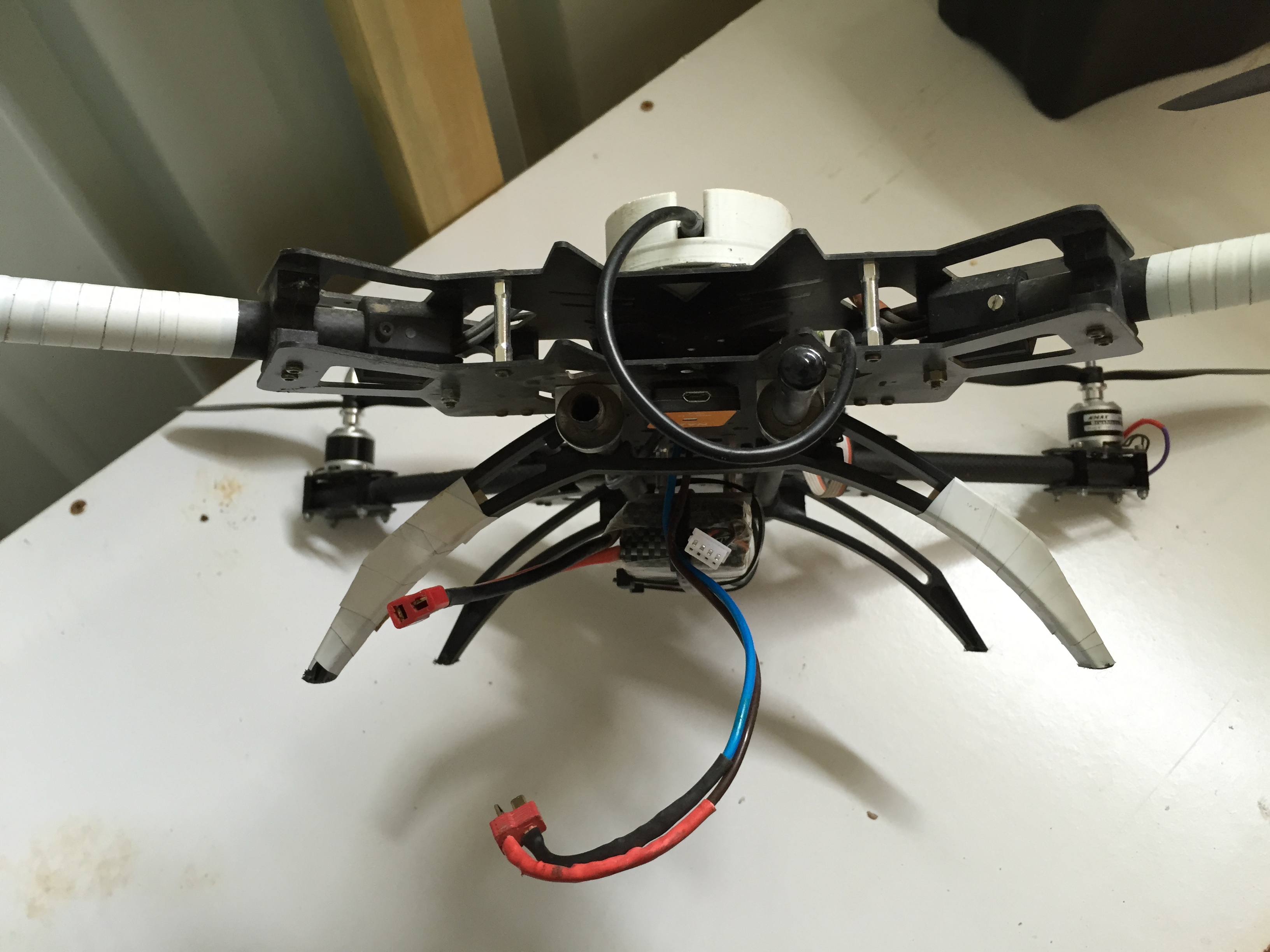
In the basic flight mode the operator must be aware which side of the quadcopter is the front. Therefore I marked the front of the vehicle (the front legs and the front engine arms) with white tape as can be seen in the next photo.

Figure 7: Marking the front of the quadcopter

Figure 7: Marking the front of the quadcopter

Propellors

The propellors must be installed at the very last step of preparing the quad copters for its first flight. So I will describe the propellor installation in the next post on “Preparing to fly”.

Quadcopter 1: Parts

In this series of posts I will describe my first Quadcopter which I call: Quadcopter 1.

My friend Misha got me interested in quadcopter around May this year (2014). I started reading about this subject and made my first purchase on eBay on May 20. My first order was for this carbon fibre frame which cost me $73:

HJ-H4 Reptile 4 Axis Carbon Fiber Folding Frame Kit with Landing Gear

On the same day (or rather night) I ordered more stuff. First a 4-in-1 ESC from Emax. It was a package deal with 4 engines and all the accessories.

Emax XA2212 Brushless Motor 980KV x4 & 25A 4-in-1 ESC for Quadcopter Multicopter

At that time I didn’t know that sometimes engines are sold separately from the Bullet banana connectors (the gold plated connectors that connect the engines to the ESC) and the screws that attach the propellors to the engine. Luckily this package contained everything. Its price was: 53 Euro which was about $77.

I also bought the heart of the quadcopter – the flight controller. Misha said that since he has an APM I should order a Naza. It was a lucky choice because the Naza is so easy to fly and it motivates you to continue learning and experimenting.

DJI NAZA-M V2 WITH GPS AUTOPILOT +PMU + GPS PROTECTOR CASE Quadcopter Hexacopter

It was expensive – $315 + almost $20 in import taxes – but its worth every penny.

Two days later I ordered a 5000 mA battery for $37.90:

Freeship 11.1 V 30C 5000mAH 3S Lipo Li-Po Lipoly Battery for RC Trex Helicopter

and a LiPo charger. This one is a fake IMax B6 and it worked until last week – for about 5 months – which is not too bad. It seems that a fuse burned, so I believe that it will be easy to fix and I’ll describe the fix in a separate blog.

This is the charger  that I bought for $20:

New iMAX B6 LCD Screen Digital RC Lipo NiMh Battery Balance Charger D1

A quadcopter needs propellors, so being very naive I bought 2 pairs of 10×45 propellors and 2 pairs of 8×45 propellors – 4 propellors of each size.

DJI 8 x 4.5, 9 x 4.7, 10 x 4.5 carbon nylon propellers quadcopters cw ccw

Carbon reinforced Propellers cw & ccw 8×4.5 9×4.7 10×4.5 quadcopter UK Stock

Each pair cost me around $13.7 which was a very bad deal indeed. I ended up spending so much money on propellors until I found that I can buy 10 pairs of propellors for $26.

And finally I needed a transmitter (remote control) and I took Misha’s advice and chose the Hitec Aurora 9 with a 7 channel Optima receiver. The package cost me around $380.

AURORA 9 2.4GHz AFHSS COMBO 7CH RX NIMH (M2)

I bought the transmitter in the UK, the actual price was GBP 220, and brought it home with me. I was concerned that it will be held by customs if I’ll get it by the mail or DHL from china. I also preferred to have an original one.

And finally, I bought 8 pairs of Deans connectors for connecting the battery the the system. At the end I used only one but its always good to have more of these parts around. Their price was 4 GBP or $6.85.

Later, when building the quadcopter I realised that I need heat shrink tubing (I had no idea that it existed) so I borrowed some from a friend and ordered more from eBay for $3.5:

Heatshrink Tubing Red Black 6 Metre Pack Sleeving Kit

So here is a summary of the parts and costs for my first quadcopter. This is not the full price I paid in order to get it up in the air. This process took me about 3 months and I had to replace countless propellors and some engines as I’ll describe. This summary is how much it could cost me to build a similar high-end quadcopter today.

[table id=1 /]

The total (initial) cost of my quadcopter 1 was: $543.45 in addition to the $380 I spent on the transmitter.